 CutStock
Manual
What you see in each tab of CutStock, what you do there and the terms that go with it.
Basics
Desktop app: in the browser, but local
The desktop app (macOS, Windows) opens in your default browser. It is not an online service: CutStock runs entirely on your own computer, the browser only shows the interface. No internet connection is needed, and your data stays on your computer (on the Mac optionally synced between your Macs via iCloud). To quit, use the "Quit" button at the top right.
Terms
- Material – a raw material, e.g. "Alu profile 40x40" (bar) or "MDF 19 mm" (panel).
- Short code – short name of the material used in piece codes, e.g.
AP40. - Piece – a single board, bar or panel in stock, with a code like
AP40-07. The code is on the label or written onto the material. - Offcut (remnant) – a piece left over after sawing that is at least the material's minimum remnant size. Offcuts go back to stock and keep the code of their board.
- Scrap – anything smaller than the minimum remnant size. It is thrown away or, if switched on, kept without a code in the offcut bin.
- Location – where a material is stored (rack, cart, box). Every material has exactly one, plus optionally a location of its own for its offcuts.
- Plan – the saved result of an optimization for one project and one material. A plan reserves the pieces it intends to use.
"Material" tab
On the left are the materials, on the right the stock of the selected material.
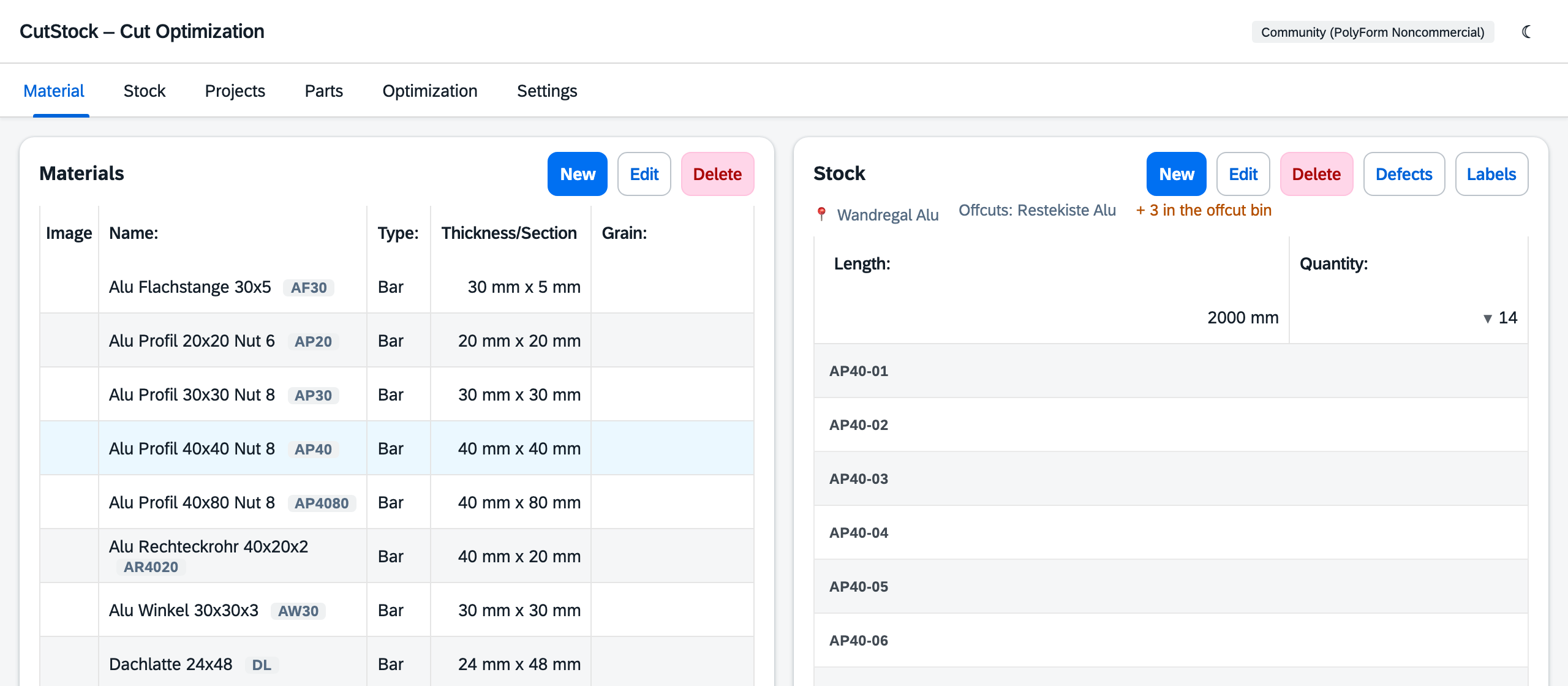
Materials
New / Edit (or double-click) opens the material dialog:
| Field | Meaning |
|---|---|
| Name, type | panel or bar |
| Thickness / cross-section | panels: thickness; bars: width × depth |
| Grain | panels only: none, lengthwise, crosswise – decides whether parts may be rotated |
| Trim | margin cut off all around before cutting (damaged edges) |
| Min. remnant length / width | pieces from this size on are offcuts and go back to stock, smaller ones are scrap |
| Short code | for piece codes, e.g. AP40 → AP40-07; empty = suggestion from the name |
| Storage location | where the material is stored (required); "+ New location …" creates one right away |
| Storage location for remnants | where its offcuts are stored; "(same location)" = with the material |
| Image | optional, shown as thumbnail and in the PDF |
More about locations in the Stock tab.
Stock
Above the stock you see where the material is stored (📍), where its offcuts are and whether some of it is in the offcut bin. Below that, one row per size with quantity; offcuts are marked.
- New adds pieces (length, width for panels, quantity, "is an offcut"). Every piece gets a code automatically.
- Edit / Delete changes or removes a stock row.
- ▶ quantity expands the individual pieces: code, note, defects and – with 🔒 – which project the piece is reserved for. Double-click a piece to change its note or take it out.
- Defects records knots, cracks etc. per piece; optimization routes around them.
- Labels … lets you choose which pieces get a label (material, size, location and code) – see Printing labels.
Freed piece numbers are only reused after a lock period (Settings → Stock), in case a piece was deducted by mistake and is still on the rack.
"Stock" tab
The Stock tab answers the question "What is where?". On the left are the storage locations, on the right the contents of the selected location. Adding and changing stock still happens in the Material tab – this tab is about the locations and what is stored there.
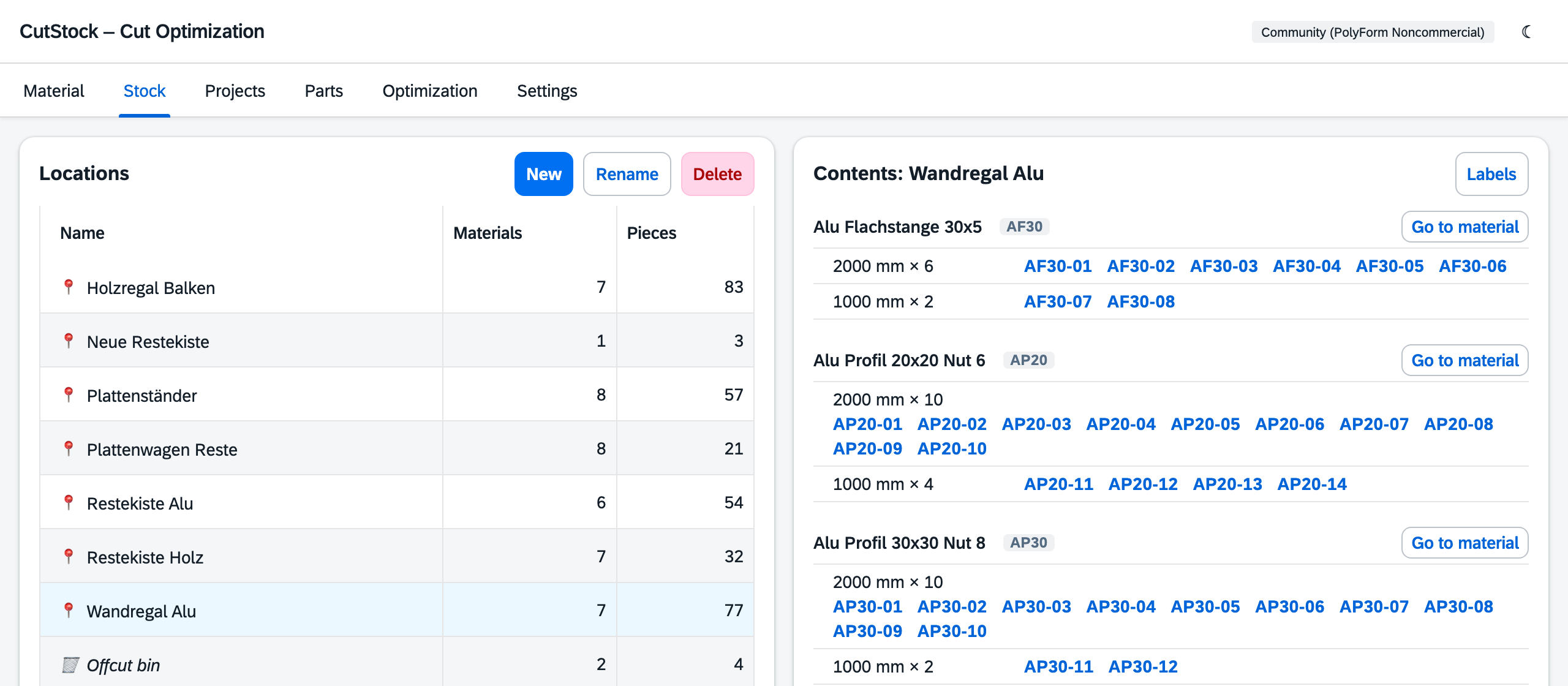
Locations
Locations are a fixed list (rack, panel cart, offcut box …). Every material is stored at exactly one location, and all its pieces are there. Optionally a material gets its own location for offcuts – in practice, offcuts from sawing are often kept somewhere else than full lengths (bars on the wall, offcuts in the box below).
- New creates a location.
- Rename (or double-click) changes the name in one step – all materials show the new name.
- Delete: an empty location is deleted right away. If material is still stored there, CutStock asks where it should go instead. The last location cannot be deleted.
There is always at least one location; on first start CutStock creates "Stock".
Which location belongs to a material is set in the material dialog (Material tab → Edit → Storage location and Storage location for remnants). It also offers "+ New location …" to create a location right while creating a material.
Contents of a location
On the right are the materials at the selected location, per size with quantity and piece codes. "offcuts only" means only the offcuts of that material are stored here (its offcut location). Pieces marked 🔒 are reserved by a saved plan.
- Click a code to open the piece: change its note, Print label or Take out …
- Go to material jumps to that material in the Material tab.
- Labels … prints labels for pieces at this location (see below).
Printing labels
Labels … (here and in the Material tab) lists all pieces by material and size, each with a checkbox. A checkbox on a material or size selects every piece below it.
- Preselected are the pieces that have never had a label printed (marked "new") – typically after a delivery or after cutting. If there are none, everything is preselected.
- Quick selection: All, None, Not printed yet, Offcuts only, Whole pieces only.
- Start at field (A4 sheets only): on a partly used sheet, printing starts at the given field (1 = top left, then row by row).
- The button shows the count, e.g. Print 5. Printed pieces then count as labelled.
A single label, e.g. to replace one that fell off, is printed with Print label in the piece's dialog, which also shows when a label was last printed. Pieces that were already in stock before this feature count as labelled.
Taking a piece out
If a piece leaves stock without a plan (sold, used for something else, defective), open it and choose Take out … with a reason:
| Reason | Meaning |
|---|---|
| Used | used for something else |
| Sold / given away | has left the workshop |
| Defective, disposed of | unusable, thrown away |
| Into the offcut bin | now kept without a code in the offcut bin (if switched on) |
If the piece is reserved by a plan, CutStock tells you – the person decides. If it is taken out anyway, the plan then shows "No longer in stock: AP40-07 – consider optimizing again".
When sawing by plan you don't need to take anything out: ticking pieces off in the Optimization tab deducts the piece and books the offcuts.
Offcut bin
Pieces smaller than the material's minimum remnant size are normally thrown away. With Settings → Stock → "Keep offcuts in the offcut bin" CutStock keeps them in the offcut bin instead – as an overview, in case a project with small parts comes along.
- Lower limit ("Only offcuts from …"): smaller pieces are still thrown away. For panels the narrower side counts.
- Scrap has no code and no label, only material, size and quantity. In the workshop you simply write the length on the piece.
- Optimization does not use the offcut bin.
- The cut plan and the PDF say for every offcut where it goes: back to stock, into the offcut bin or throw away.
- Take 1 takes one piece out of the bin, Throw away empties it for one material, Empty bin empties it completely.
- In the Material tab, "+ n in the offcut bin" is shown above the stock if there is something of that material in the bin.
Switching it off keeps the contents; the bin is shown as long as something is in it.
Stock journal
Every stock booking is recorded – receiving, taking out (with reason), sawn by plan, offcut booked,
scrap, changes to locations – no matter whether it comes from the interface or via the
REST API. The journal is currently available via the API (GET /api/journal).
"Projects" tab
Top left the projects, below them the combined plans, on the right the parts of the selected entry.
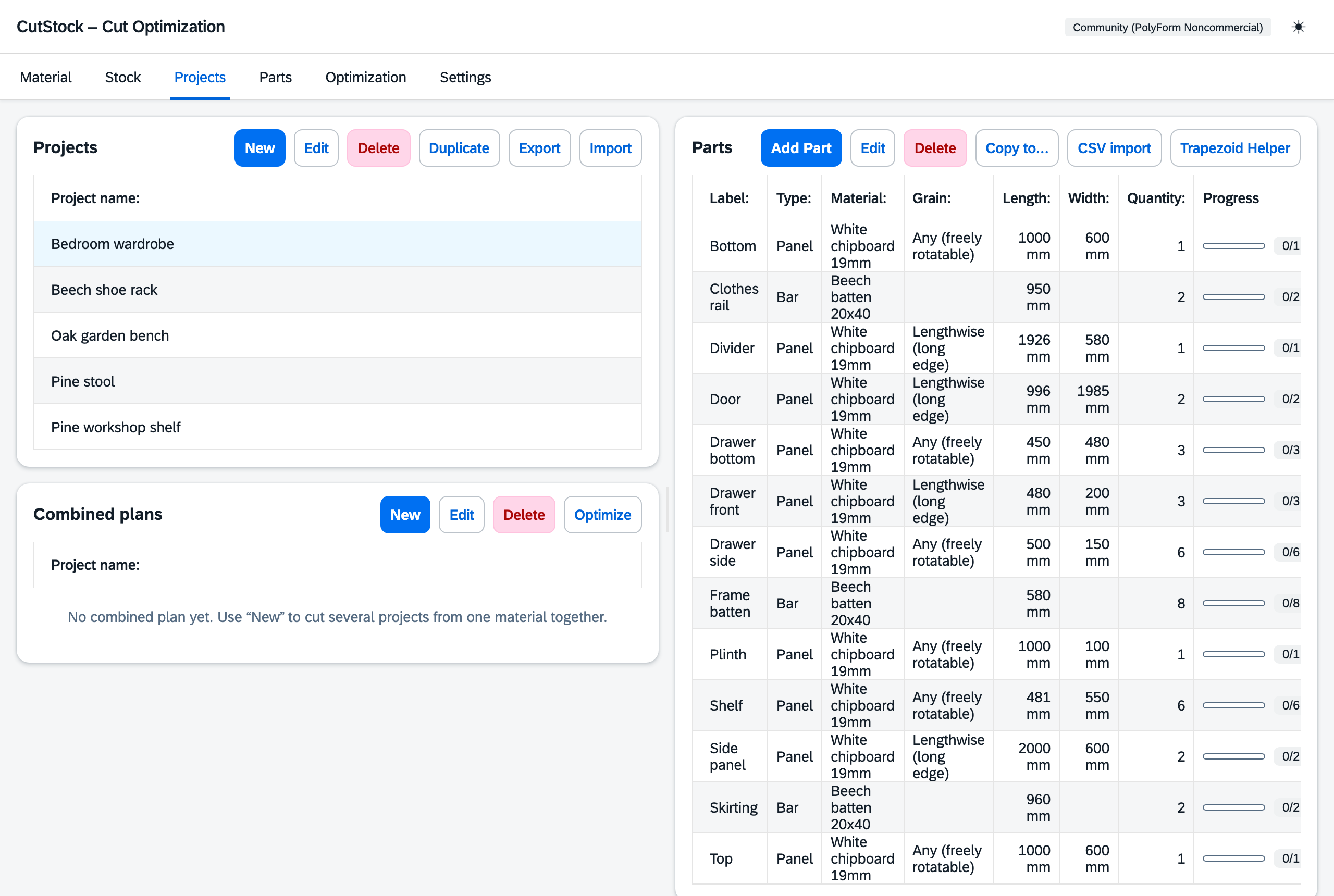
Projects
- New, Edit, Delete, Duplicate as usual.
- Number of copies: if a project is built several times, set the number on the project – all copies are optimized together.
- Import/export as JSON, import part lists from CSV.
- A small 🔗 marks projects that are part of a combined plan (the tooltip names it); "Cut list" marks lists created in the Parts tab.
Parts
Every part has a label, type, material, dimensions, quantity (per copy) and grain direction (any, lengthwise, crosswise). The progress shows how many have already been cut.
In the "Edit part" dialog the shelf stock can be corrected by hand ("On the shelf"), e.g. after a stocktaking.
Parts whose material is cut in a combined plan are grey and show "→" with the name of the combined plan; clicking it selects the combined plan. They can still be edited – a combined plan that has already been calculated is then marked as outdated.
Combined plans
A combined plan cuts the parts of several projects from one material together – this often saves whole bars or panels. There is at most one combined plan per material. The entries in the "Combined plans" box carry a 🔗 and the label "Combined plan".
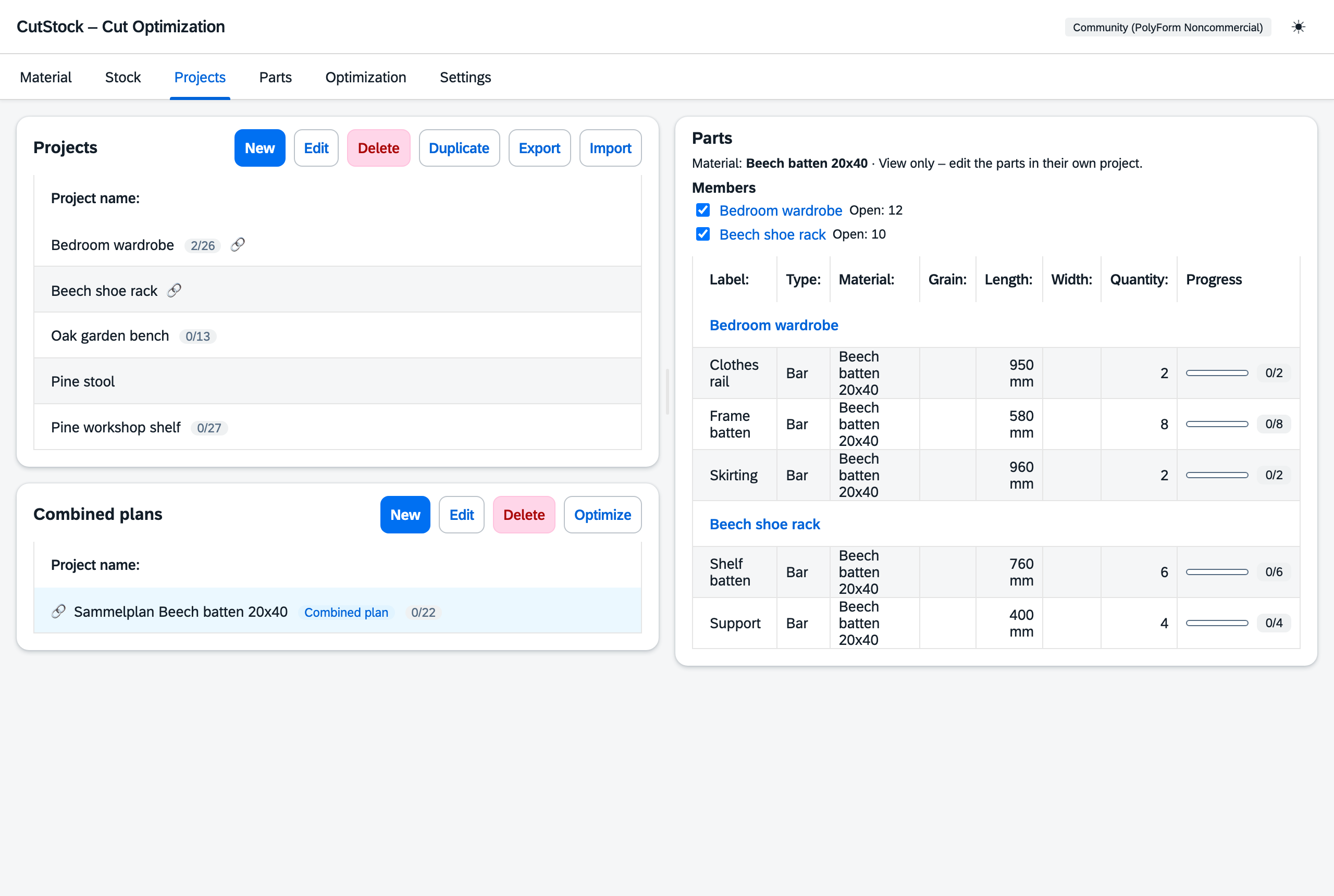
- New: choose the material, then tick the projects with open parts in this material. If the material already has a combined plan, that one is opened. It is named "Sammelplan" plus the material name, e.g. "Sammelplan Beech batten 20x40".
- Edit: rename.
- When selected, the right box shows the members with checkboxes (change them there) and below their parts in this material, grouped by project and read-only. Project names link to the project; parts are edited there.
- Optimize jumps to Optimization (material mode) with this combined plan.
- Delete like a project, with a warning if cutting has already started. Nothing is lost: parts already cut stay cut in their projects, the rest becomes open again and reserved stock pieces are released. Afterwards the projects can be optimized individually or combined anew.
"Parts" tab
This tab shows the parts of all projects, filterable by material and project, with open quantity and shelf stock.
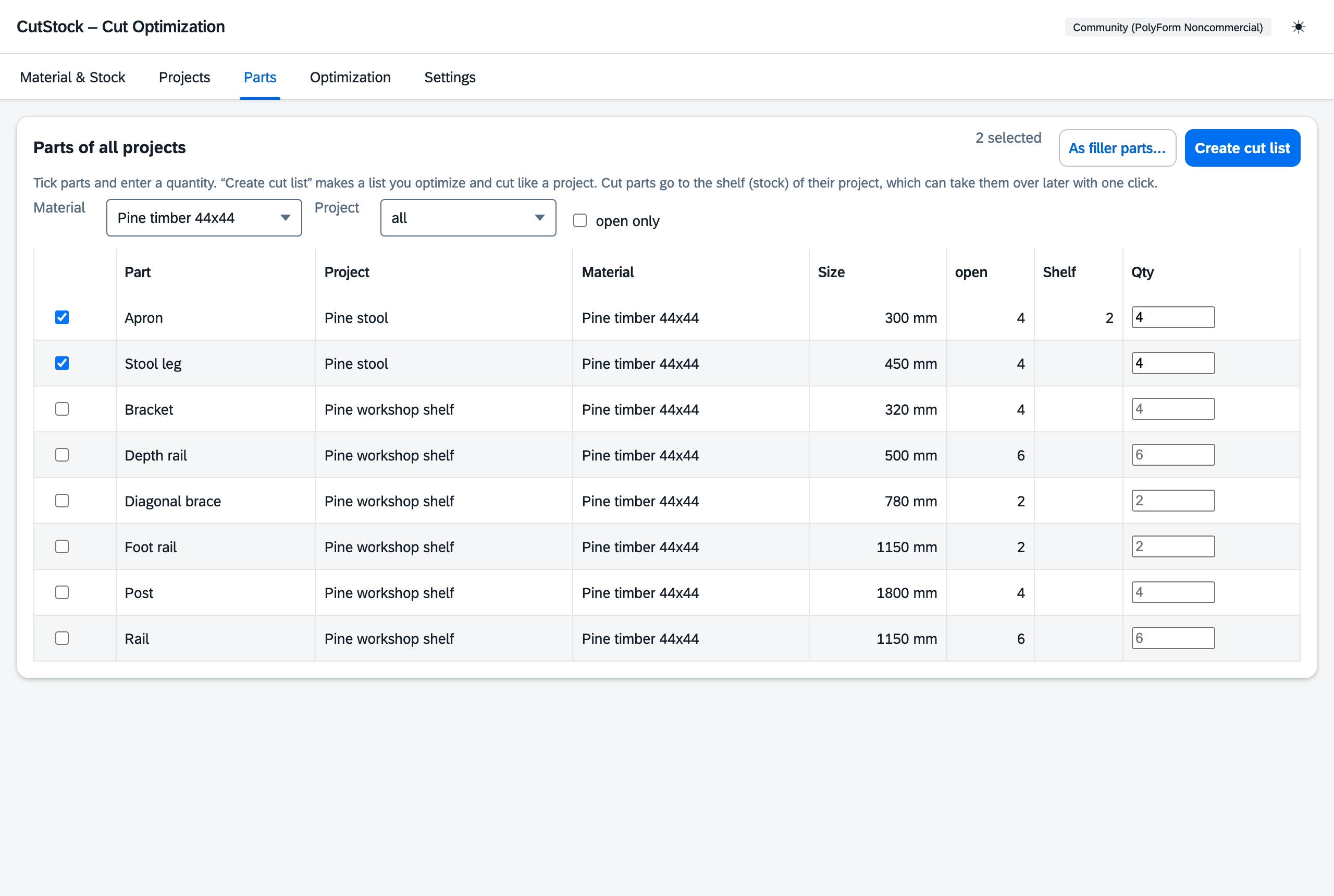
Create a cut list
Tick parts, enter a quantity and Create cut list: this creates a cut list that appears in the Projects tab and is optimized, cut and printed like a project. Ticked-off parts go onto the shelf (stock) of the project they come from, which takes them over later with one click. Once everything is cut, CutStock offers to delete the list. Duplicating a cut list keeps it a cut list.
As filler parts
As filler parts … takes the ticked parts along as filler parts in another project's plan (see Optimization → Filler parts).
Shelf stock
Finished parts kept in stock. They come from filler parts and cut lists and are taken over as cut with one click in the Optimization tab of the project. The stock can be corrected in the "Edit part" dialog.
"Optimization" tab
This is where cut plans are made – and where pieces are ticked off while sawing.
Optimize
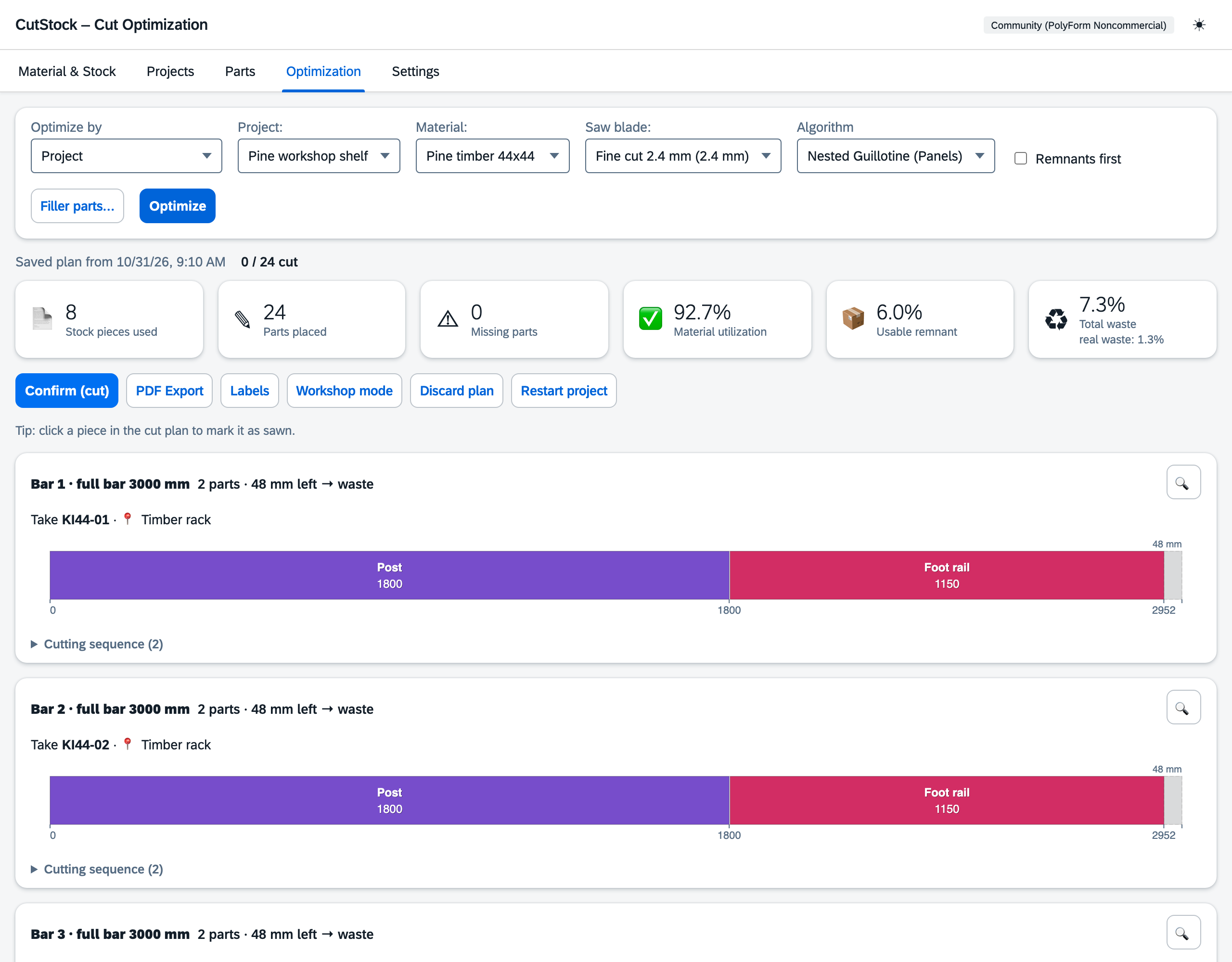
Choose project, material, saw blade and algorithm, then Optimize.
- Algorithms: Fast (greedy), Nested Guillotine (smart split direction), Thorough (genetic algorithm).
- Remnants first: plan offcuts first, then full bars/panels.
- Max. per bar: at most this many parts per bar – leaves room for filler parts.
Every calculation is saved as a plan. The plan reserves its pieces that haven't been started yet, so other projects don't plan them (can be switched off under Settings → Stock). Notices appear when parts or material changed since the calculation, or when a planned piece is no longer in stock (with its code, e.g. "No longer in stock: AP40-07").
The plan
Every bar/panel has a header line: what to take ("Take AP40-07 · Rack Alu"), how many parts are on it and where every offcut goes:
- back to stock – from the minimum remnant size on; the largest offcut keeps the board's code and is then stored at the material's offcut location,
- into the offcut bin – smaller, but above the lower limit, if the offcut bin is switched on (see Stock),
- throw away – everything else.
Clicking a part in the plan ticks it off as cut. With the first part of a board, the piece is deducted from stock, offcuts are booked and scrap goes into the offcut bin. Unticking reverts it.
More buttons: Confirm (cut) for everything, PDF export, Labels, Workshop mode, Discard plan (releases reserved pieces), Restart project (progress back to 0, stock stays).
Panels
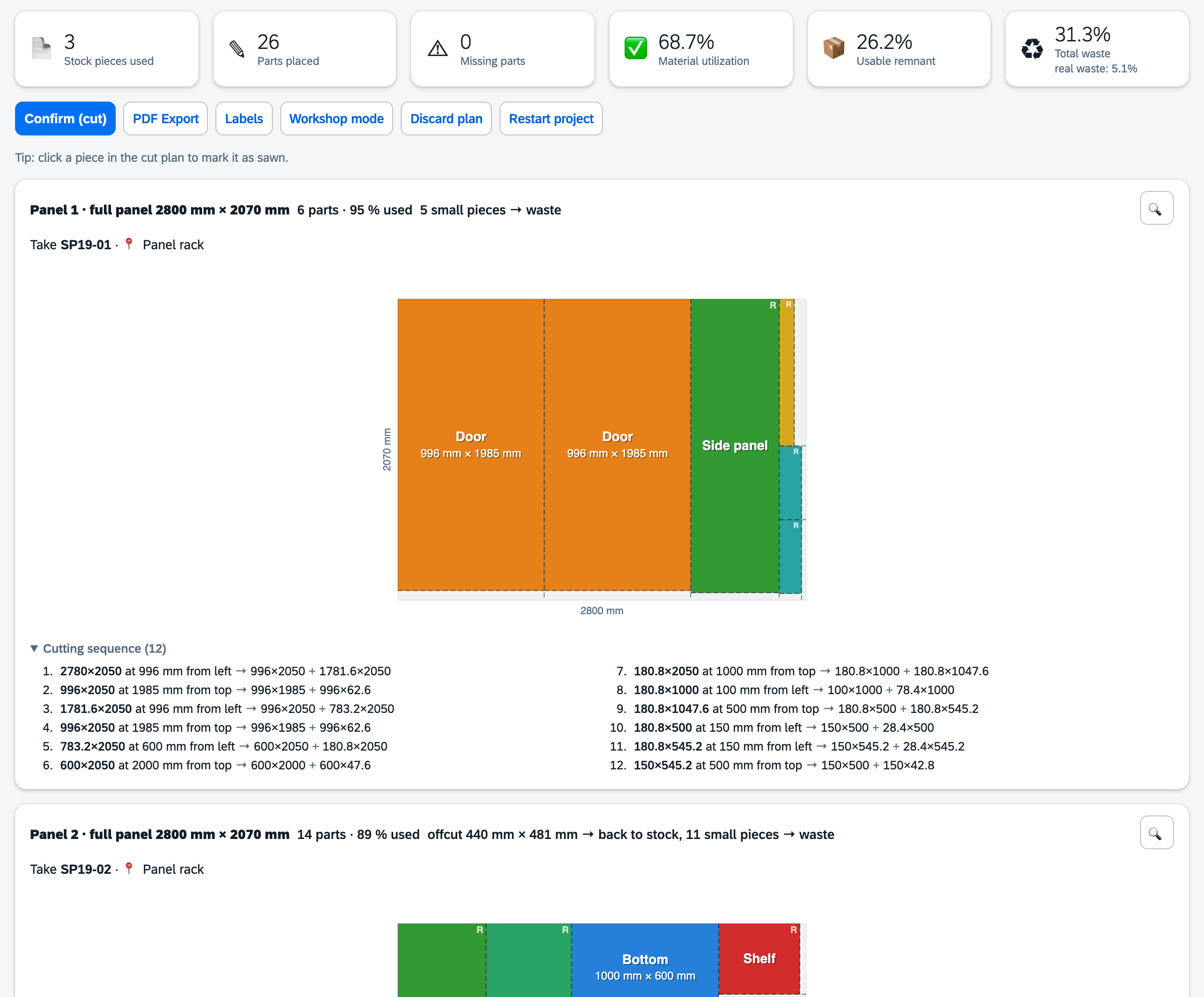
2D guillotine packing: every cut goes from edge to edge, so offcuts remain rectangles. The numbered cutting sequence below each plan says exactly where to saw – the saw blade width is already included.
Filler parts
If there is waste at the end of a bar or on a panel, CutStock fills it with parts from other projects (Filler parts …). It never uses more material. Filler parts are hatched, carry their project and go onto their project's shelf once cut.

Combined plan
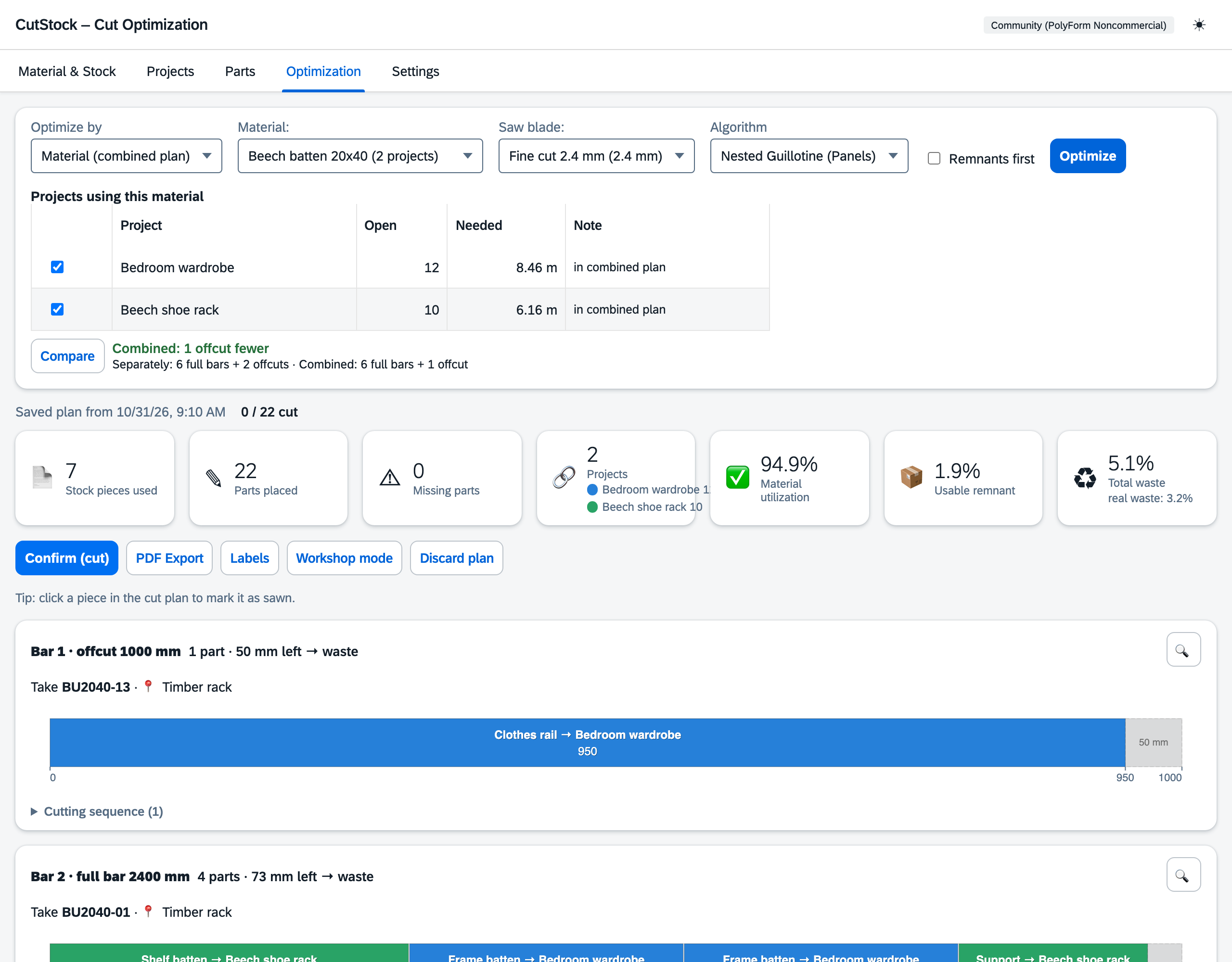
If the same material is needed in several projects: "Optimize by: Material (combined plan)", choose the material, tick the projects. Compare shows the savings against separate plans. Every project gets its own color; ticked-off parts count in their project. Creating, renaming, changing members and deleting also works in the Projects tab, box "Combined plans".
Material requirements
If the stock isn't enough, CutStock shows a shopping list; one click adds it to stock.
Workshop mode
Full screen for a tablet at the saw: one bar/panel per page with piece code and location, big touch targets, progress, "next" marker. New offcuts are shown with their code and can be printed as labels right away.
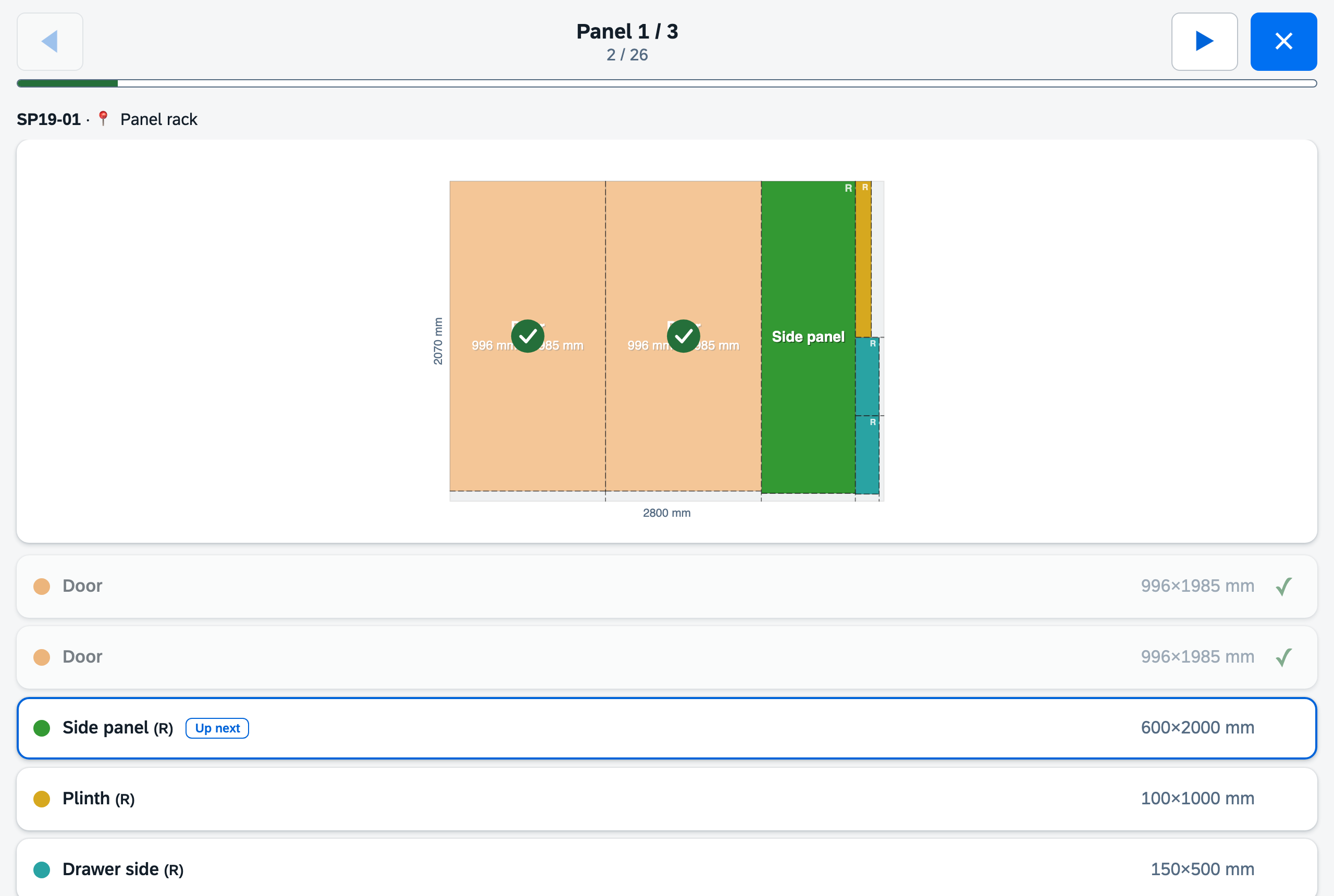
Parts list with quantities, material requirements with piece codes and location, identical cutting patterns combined; every pattern says where its offcuts go.
"Settings" tab
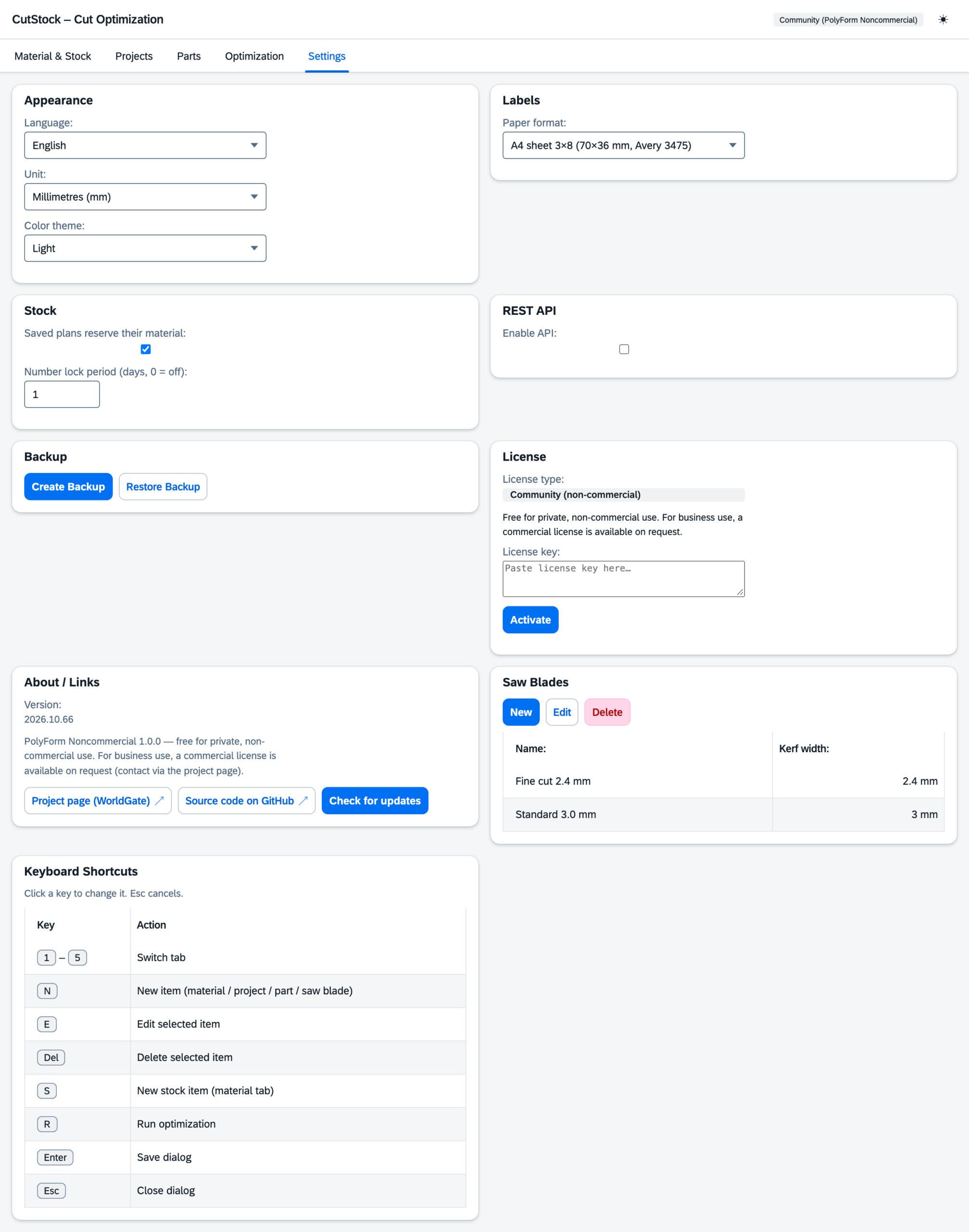
| Section | Settings |
|---|---|
| Appearance | Language (Deutsch, English, Français, Italiano), unit (mm/cm), theme (auto, light, dark) |
| Labels | Paper format: A4 sheets (e.g. Avery 3475/L7160) or label printer, custom sizes |
| Stock | Saved plans reserve their material – planned pieces are not used by other projects |
| Number lock period – freed piece numbers are reused only after this many days (0 = immediately) | |
| Keep offcuts in the offcut bin – pieces below the minimum remnant size go into the offcut bin instead of the trash | |
| Only offcuts from … – smaller pieces are still thrown away (panels: narrower side) | |
| REST API | Enable API, port, API key (see REST API) |
| Backup | Back up / restore database + settings as ZIP |
| License | License status and key |
| Saw blades | Name and kerf |
| Keyboard shortcuts | Click a key, press the new key |
Fixed keys: 1–6 switch tabs, Enter saves a dialog, Esc closes it.